Getting Your Students Started with their Online Courses
How enrollment works and what you can see in the portal
Getting your students started in their online courses is easy. Simply order the courses you need and an enrollment confirmation email will be sent to your student. Once your student has gotten started, you can track their progress right from the dashboard!
Communication
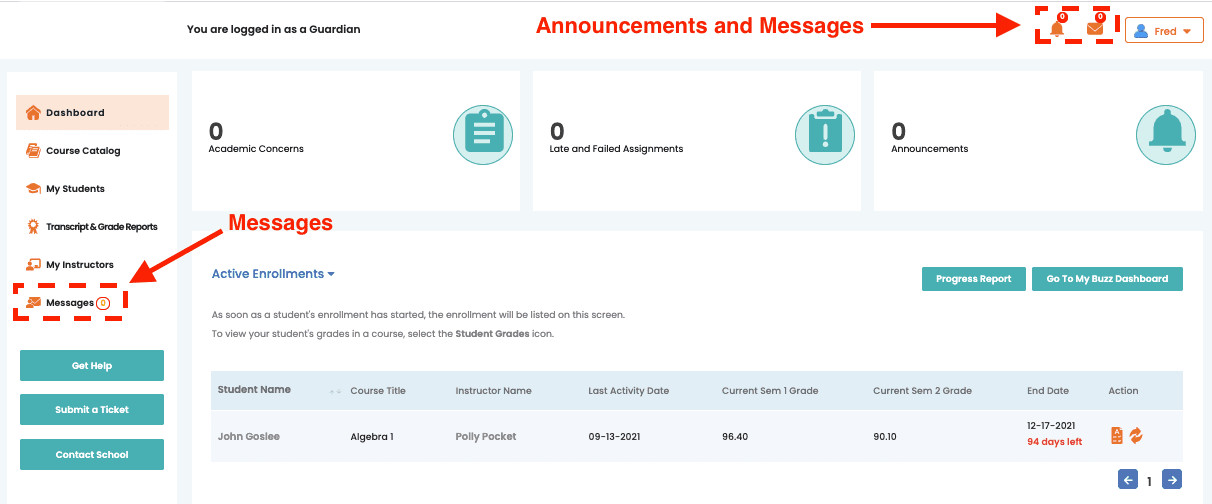
There are multiple ways to communicate with your student’s instructor through the portal. You can go to Messages from the dashboard menu on the left, or use the envelope icon at the top right. You can also view announcements by clicking the bell icon at the top right.
Ordering Courses
Choose Course Catalog from the dashboard menu, select the course you’d like to order, then select the “Purchase Course” button.

Student Progress
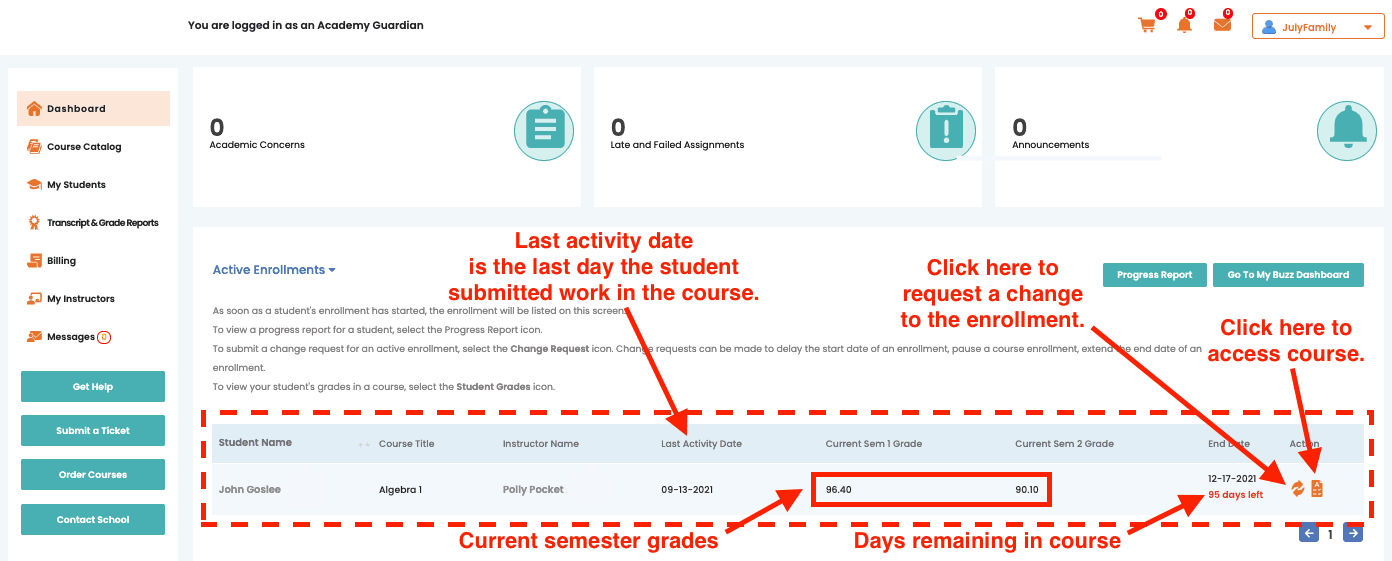
From the dashboard, you can see all of your student’s enrollments, who their instructors are, their current semester grades, their last activity date, and how many days remain in each enrollment. Selecting the instructor’s name will allow you to send a message. Selecting the Gradebook icon takes you into the gradebook as an observer only — you can view your student’s grades and work, but you cannot open or complete assignments on their behalf.
Transcripts & Grade Reports
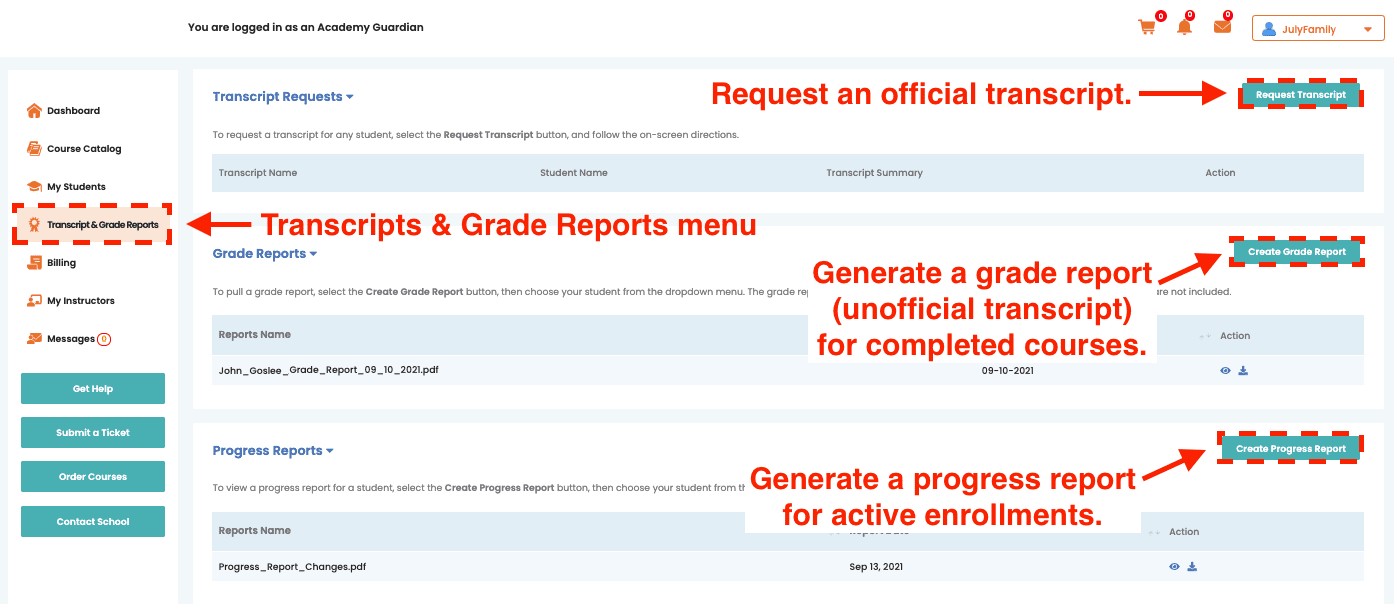
You can print your student’s grade reports or progress reports at any time by selecting Transcripts & Grade Reports from the dashboard menu. Grade reports are unofficial transcripts for completed courses. Progress reports show your student’s current grade in an active course. You can request an official transcript once your student has completed their course.
How to Obtain Official Transcripts
Official transcripts are processed securely through Parchment for a fee paid directly to Parchment. You can request an official transcript by following the steps below:
- 1
Go to Parchment and create an account in the student’s name.
- 2
Select the option to request a copy of the student’s transcript.
- 3
Choose the schools, universities, or individuals to which the transcript should be sent.
Important Notes
1. Transcript requests are processed manually. Please allow up to 5–7 business days for your request to be processed.
2. Official transcripts and Grade Reports include completed courses only.
Parent Resources
Guides to help you support your student
Resources for Your Student
Guides you can pass along to your student
Important Information
The welcome video every student receives
To help students start strong, at the beginning of each course they will be sent an email containing the video below, which walks through everything students need to know before starting. It covers scheduling the welcome call and first Discussion-Based Assessment (DBA), DBA etiquette, due dates and grace periods, rescheduling, how to navigate the Buzz gradebook, and the AI-use policy.
Need more help?
Submit a support ticket and our team will get back to you as quickly as possible.